
Getting started
WishSupport brings merchant conversations from all your Shopify apps into one portal. Create an account, set up a space for each app, invite your team, then answer merchants from the shared inbox.
1. Create your account
Open portal.wishsupport.app/auth/sign-up and fill in your name, email, a unique username and a password. A phone number is optional.
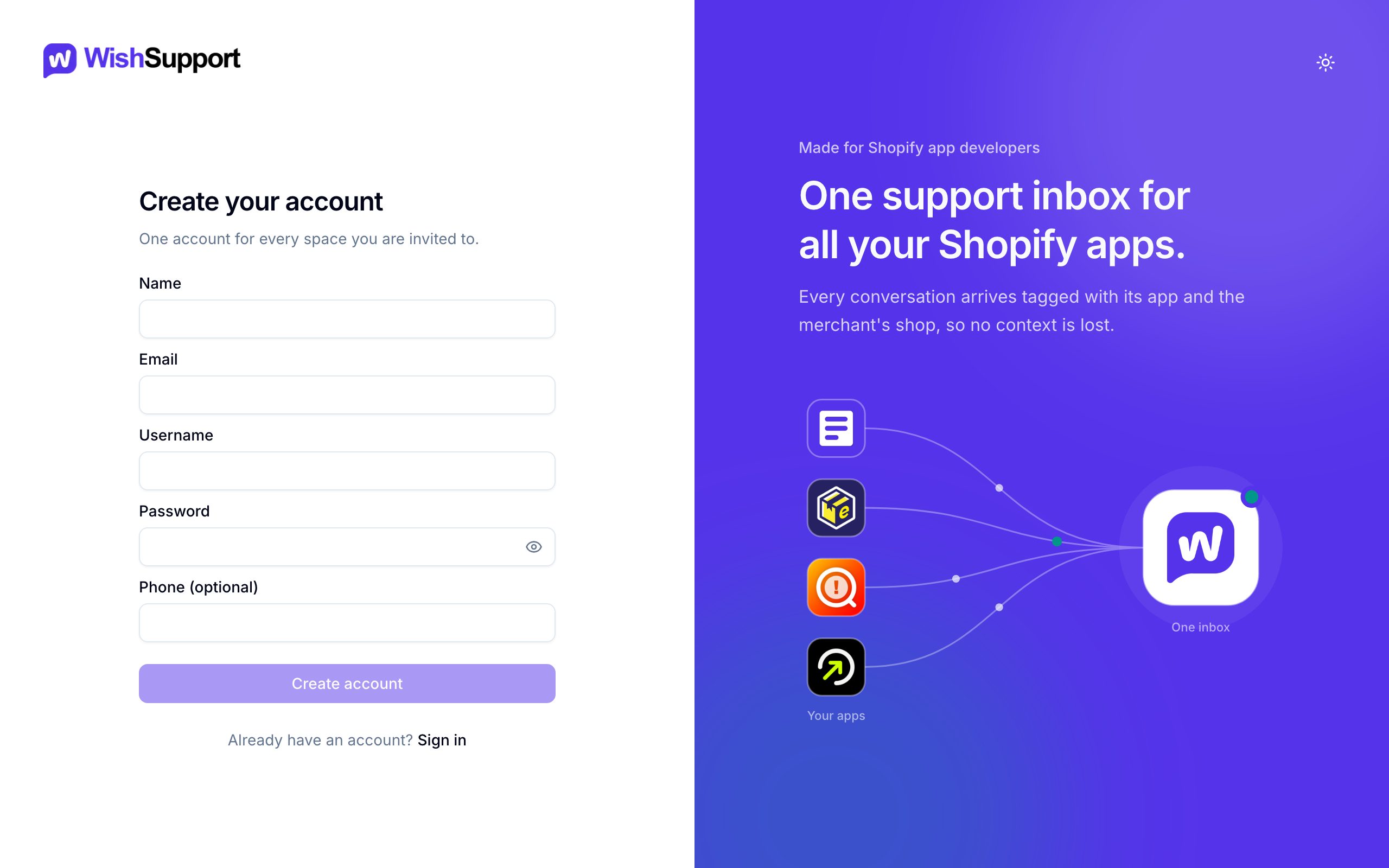
We email you a verification link; opening it signs you in. Every new account starts on the free Solo plan, so you can set up your first space right away.
Already have an account? Sign in with your email and password, or use Forgot password? to get a reset link.
2. Create or join a space
A space is the support workspace for one of your apps. It has its own inbox, team, settings and API keys, and you can belong to several spaces with one account.
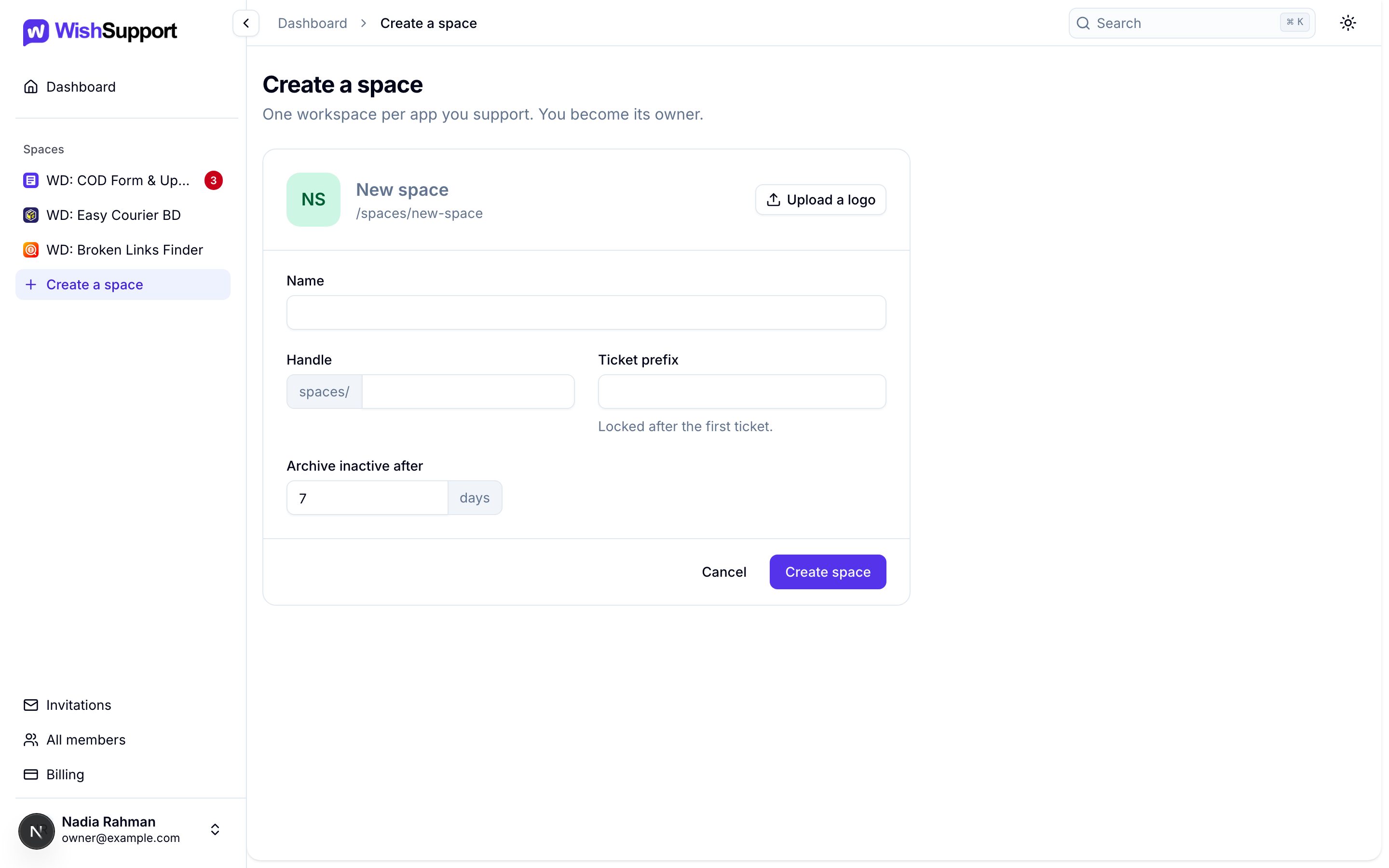
To create one, open Create a space and fill in:
- Name: what your team sees, usually the app’s name.
- Handle: the space’s address, for example
/spaces/cod-form. Lowercase letters, digits and hyphens. - Ticket prefix: starts every ticket code, for example
TCKinTCK-A7K2P9X. 2 to 8 uppercase letters or digits, unique to your space, and locked once the first ticket arrives. - Archive inactive after: how many quiet days before a conversation archives itself. Defaults to 7; any value from 1 to 365.
You can also upload a logo. You become the space’s owner.
Your plan sets how many spaces you can own; the free Solo plan includes one. See Billing to compare plans.
Invited to someone else’s space? Open Invitations from the bottom of the sidebar and accept it to join their team.
3. Find your way around
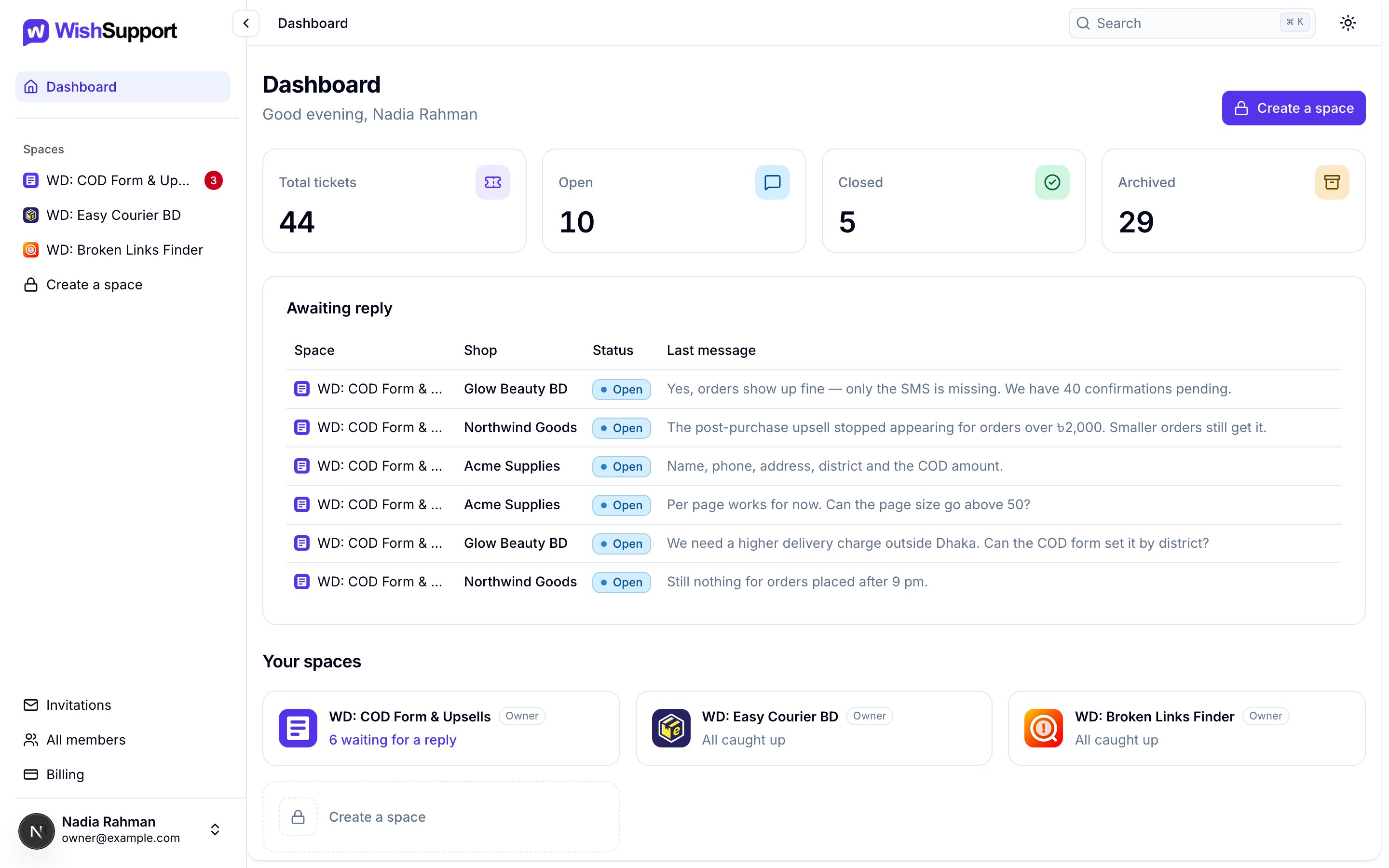
The Dashboard is your view across every space: ticket totals, the conversations awaiting a reply, and a card for each space.
| Where | What it is for |
|---|---|
| Dashboard | Totals, conversations awaiting a reply across spaces, and your spaces |
| A space in the sidebar | That space’s inbox: search, filter and answer conversations |
| Space settings | General details, members, invitations, notifications, API keys and the audit log |
| Invitations | Invitations waiting for your answer |
| All members | Everyone in the spaces you own, one seat per person |
| Billing | Your plan and this month’s usage |
| Search (⌘K or Ctrl K) | Jump to any page or space |
4. Understand the conversation labels
- Open conversations can receive replies.
- Closed conversations are resolved and do not accept a new message until reopened.
- Archived conversations went quiet. A new message from either side reopens them.
- Awaiting reply means the merchant wrote last and the open conversation needs a response.
- Unread means your team has not read the latest activity. It is separate from awaiting reply: a conversation can be read and still need an answer.
5. Invite your team
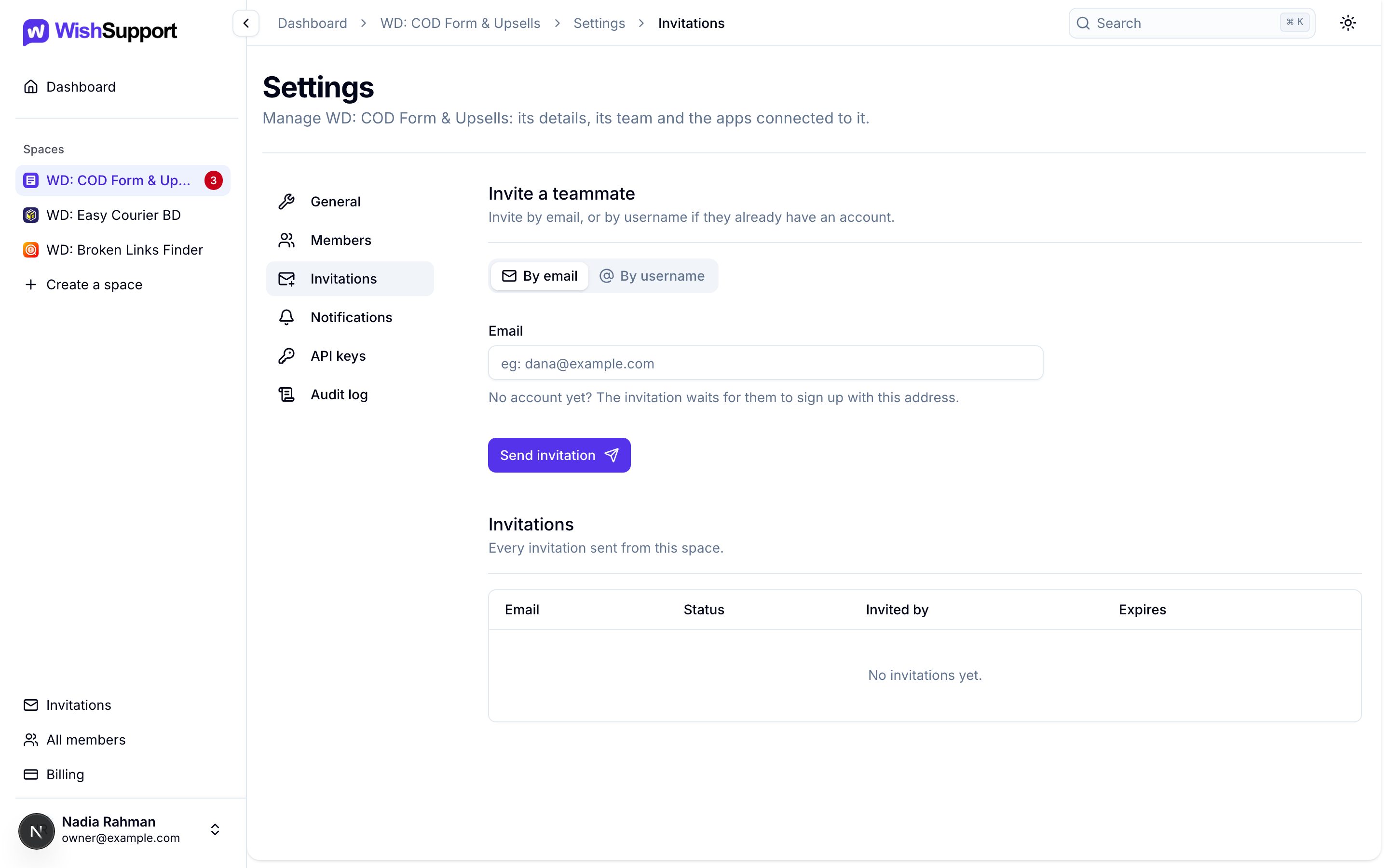
As a space owner, open the space’s Settings → Invitations and invite a teammate by email or by username. Someone without an account can still be invited by email: the invitation waits until they sign up with that address. They accept it from their Invitations page to become a member.
Your plan sets how many teammates you can add. A person counts once, however many of your spaces they are in. See Workspace settings for what owners and members can do.