
Manage conversations
Each space has an inbox for its merchant conversations. A conversation holds the merchant’s request, the thread of messages and its status.
Find a conversation
Open a space from the sidebar to reach its inbox. The newest activity is at the top.
- Search by ticket code, shop domain or subject.
- Status shows all conversations, or only open, closed or archived ones.
- Unread keeps only conversations with activity your team has not read.
- Awaiting reply keeps only open conversations where the merchant wrote last.
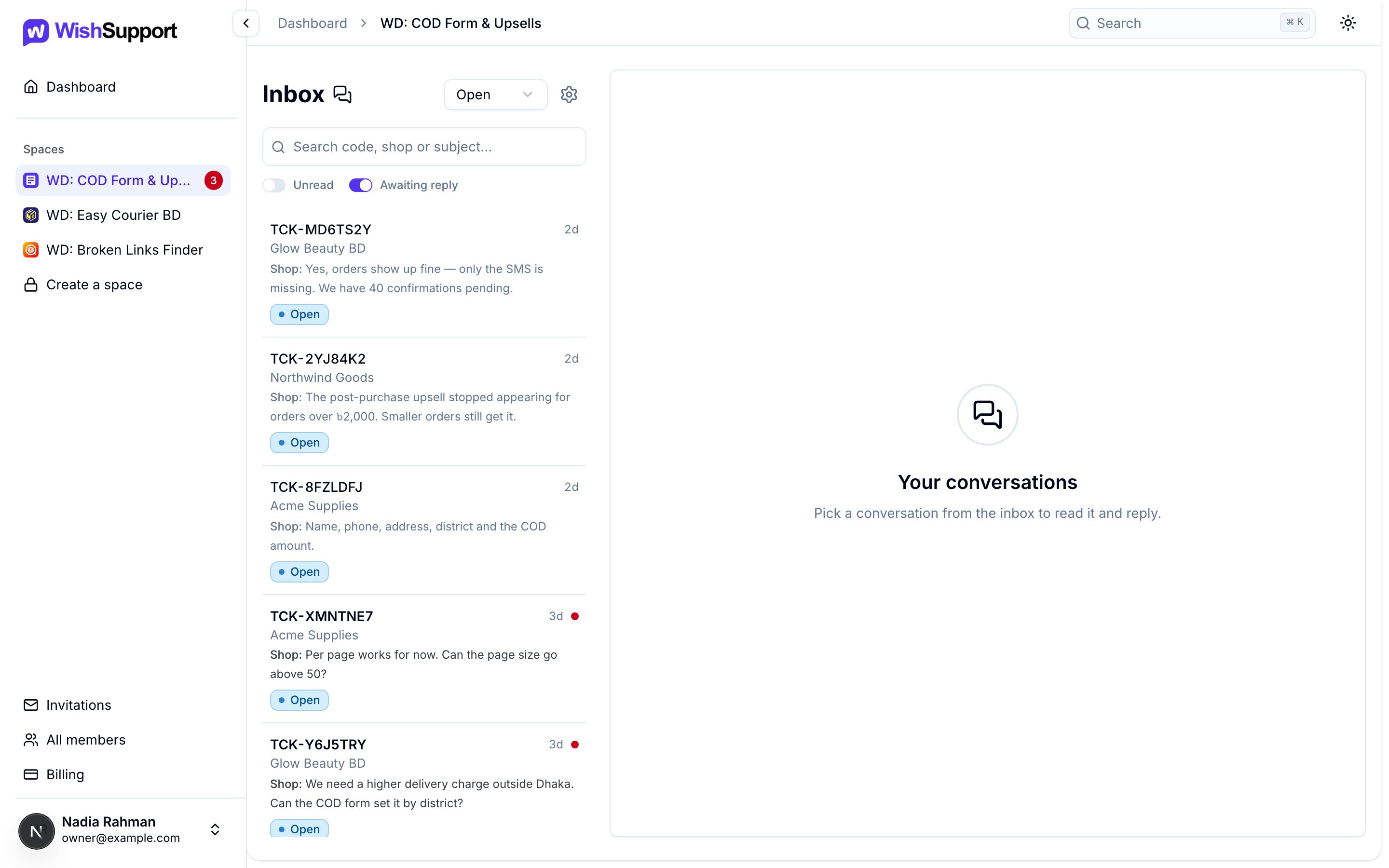
Unread and Awaiting reply answer different questions. Unread is about whether your team has seen the latest activity; Awaiting reply is about who has to act next. Reading a conversation does not take it off the Awaiting reply list; replying does.
Work a thread
Select a conversation to open its thread. The merchant’s messages sit on the left and your team’s replies on the right, each with the name of who sent it.
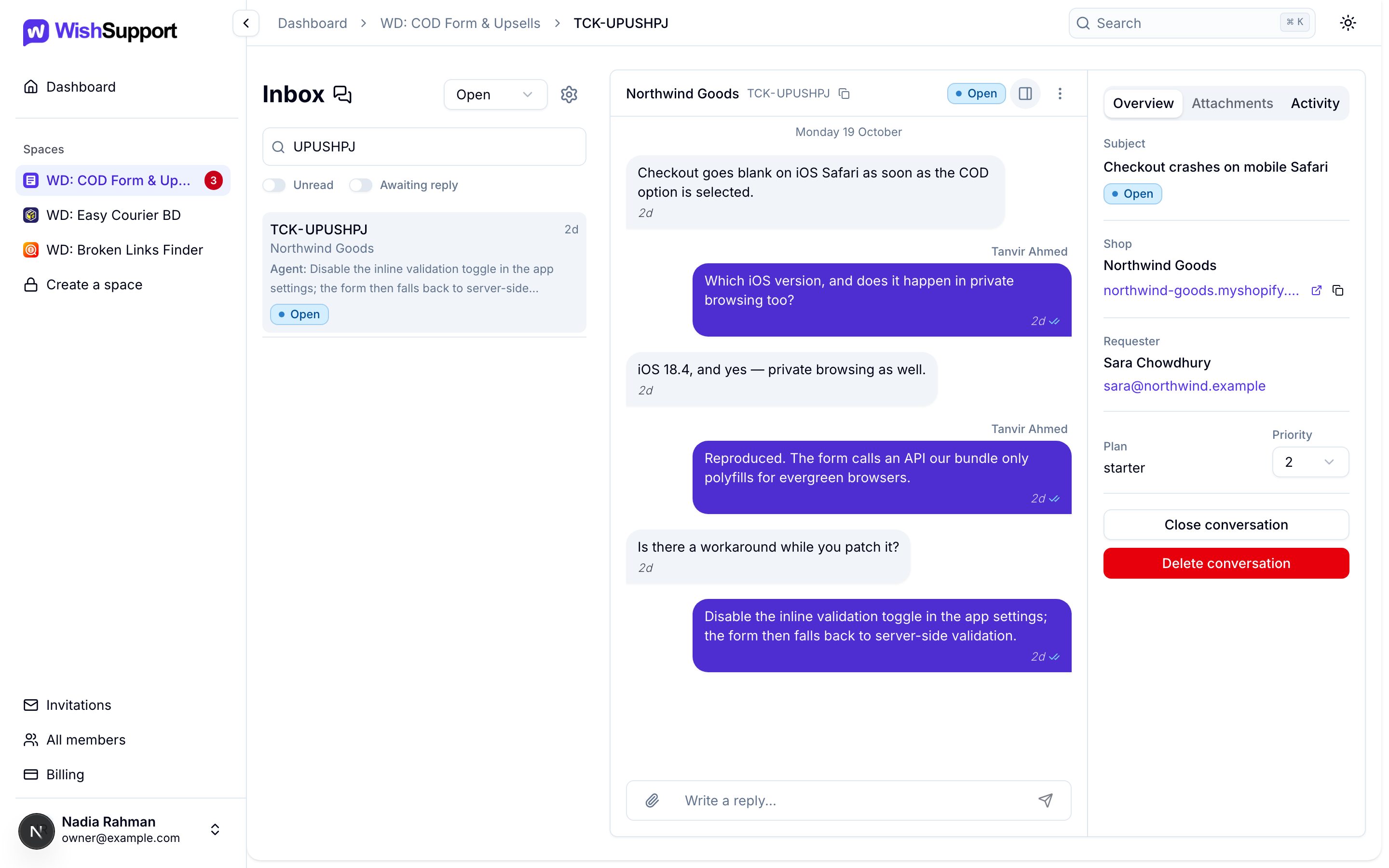
- Read the latest message and open any attached files.
- Write your answer in the reply box at the bottom. Use the paperclip to attach files.
- Send it. It reaches the merchant through your app.
- When the issue is resolved, close the conversation.
Under each of your replies, one tick means it was sent and two blue ticks mean the merchant has seen it.
The details panel
Use the panel button in the thread header to show or hide the details panel. It has three tabs:
- Overview: the subject and status, the shop with a link to it, the requester and their email, the merchant’s plan, and the Priority (1 to 10), which anyone on the team can change.
- Attachments: every file shared in the conversation.
- Activity: the conversation’s history, such as who replied, closed, reopened or deleted what. Only the space owner sees this tab.
Close, reopen and mark unread
Close and reopen a conversation from the details panel or the ⋮ menu in the thread header. A closed conversation does not accept new messages until it is reopened.
Choose Mark as unread in the ⋮ menu to send a conversation back to your team’s unread list. Read state is shared by the whole team: it says whether someone on your team has seen the latest activity, not whether you personally have.
Conversations archive themselves after the space’s quiet period, 7 days unless the owner changes it in the space settings. Archiving is not deletion: a new message from either side reopens the conversation.
Held conversations
Your plan includes a number of support requests each month. When the month’s requests are used up, new conversations still arrive, so merchants are never turned away, but they are held:
- You can read the subject and the messages, but the shop and requester details are hidden.
- Your team cannot reply until the conversation is released.
Once requests are available again, after an upgrade or when a new month starts, open the conversation and choose Release, or use Release all in the inbox. Anyone on the team can release. Nothing is released automatically. See Billing for your plan and this month’s usage.
Email alerts
- Your team gets an email when a new conversation arrives, and again when a merchant’s message has gone unread for 5 minutes. The owner picks who receives these in the space’s Settings → Notifications.
- The merchant gets an email when one of your replies has gone unseen for 5 minutes, and when your team closes the conversation.
One email covers a run of messages, so a busy conversation does not flood anyone’s inbox.
Attachments
Each message can carry up to four files. A file can be up to 10 MB, and an image up to 5 MB. Accepted types are PNG, JPEG, GIF, WebP, PDF, plain text, CSV, ZIP, GZIP, TAR and 7z; SVG is not accepted. If an upload fails, check the file’s type and size.
Deleting
- Anyone on the team can delete their own messages. The space owner can delete any message.
- A deleted message stays in the thread as a marker saying who deleted it, so the history stays complete.
- Only the space owner can delete a whole conversation.
Good support habits
- Reply in the existing thread so the history stays together.
- Quote the ticket code when you discuss a case outside WishSupport.
- Close only when the request is resolved; reopen if the merchant follows up.
- Keep secrets, payment details and unneeded personal information out of messages and files.