
Workspace settings
Each space keeps its own details, team, notifications, API keys and audit log. Open a space, then the gear icon beside its inbox, to reach Settings. Space settings belong to the owner: a member who opens them is taken back to the inbox.
Owner and member roles
| What | Owner | Member |
|---|---|---|
| Read and reply to conversations | Yes | Yes |
| Close, reopen and change priority | Yes | Yes |
| Release held conversations | Yes | Yes |
| Delete messages | Any message | Their own |
| Delete a conversation | Yes | No |
| See a conversation’s Activity tab | Yes | No |
| Space settings, members, invitations and API keys | Yes | No |
| Freeze or delete the space | Yes | No |
The owner is whoever created the space. That role cannot be removed, changed or handed to someone else.
General
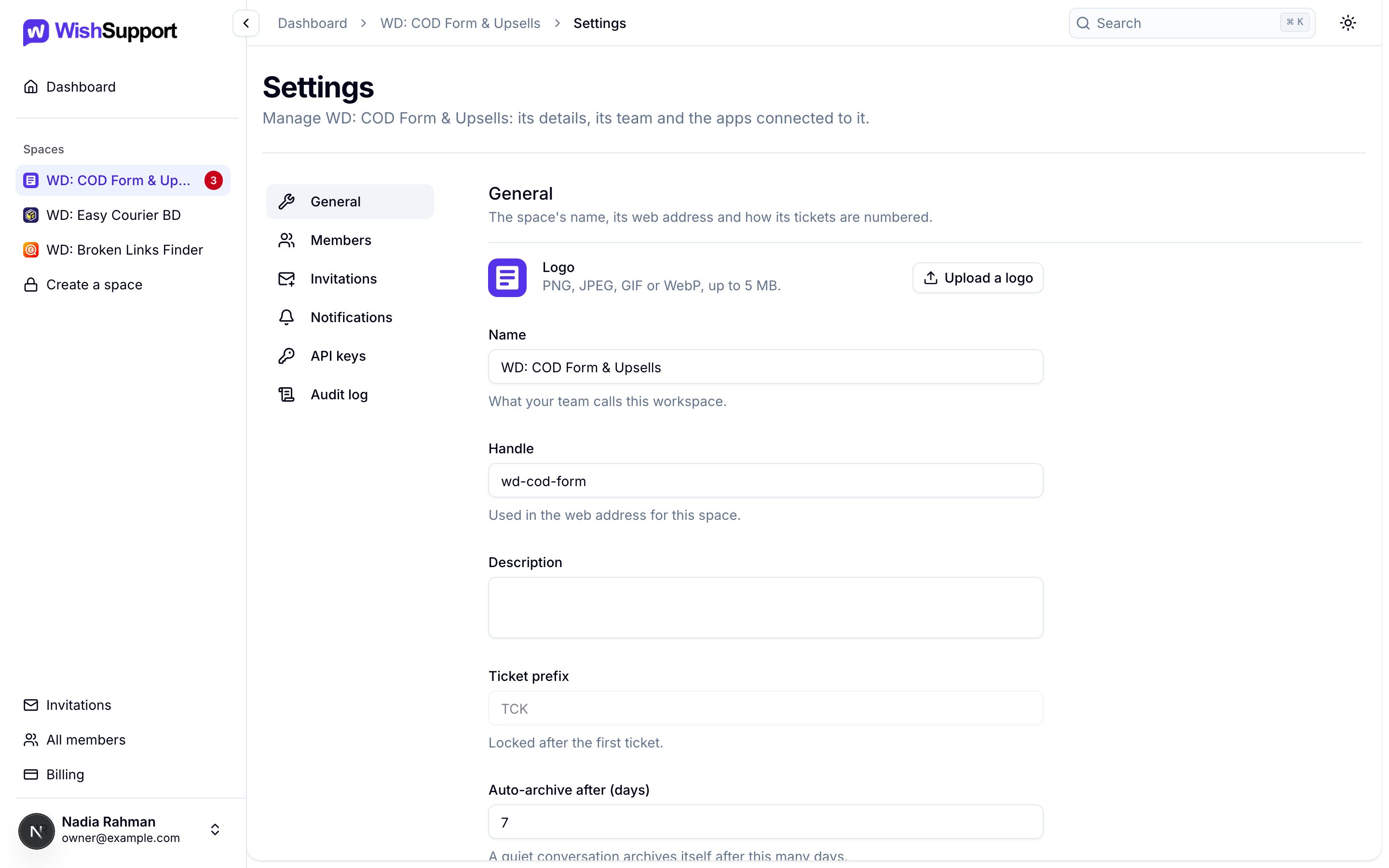
Change the space’s logo, name, handle and description, and how many quiet days pass before a conversation archives itself (1 to 365). The ticket prefix can still be changed until the first ticket arrives; after that it is locked, so existing ticket codes never change.
Further down the same page:
- Freeze frees the space’s slot on your plan without deleting it. Its members lose access until you unfreeze it, and merchants keep writing in: their new requests are held until released. Unfreezing needs a free space slot on your plan.
- Danger zone → Delete this space removes the space and its conversations. Type the space’s handle to confirm. The audit trail keeps a record.
Members
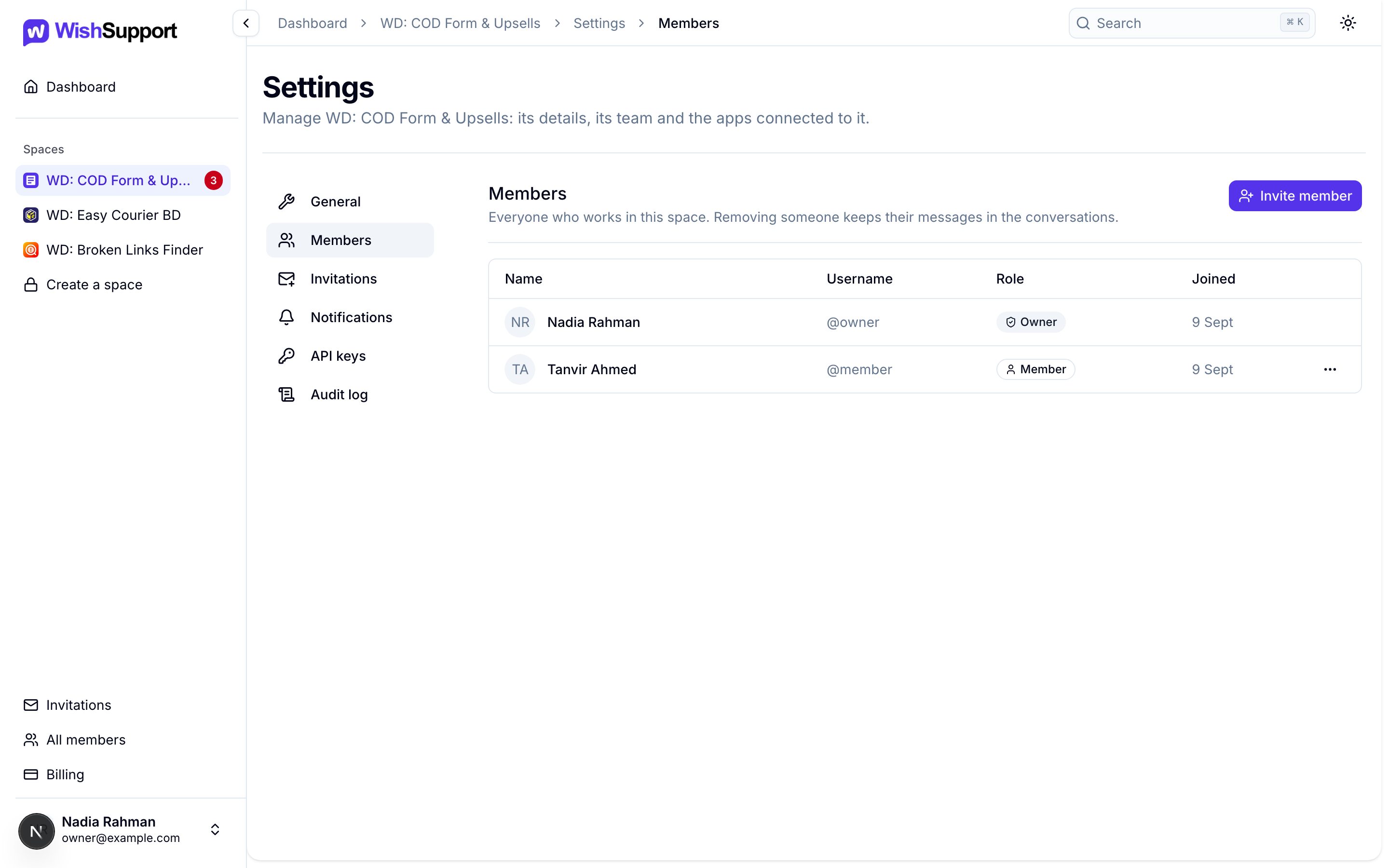
Everyone who works in the space, with their username, role and the date they joined. Use ⋯ → Remove to take someone off the team: they lose access to this space, their account stays, and their messages stay in the conversations.
Invitations
Invite a teammate by email, or by username if they already have an account. Someone without an account can be invited by email: the invitation waits until they sign up with that address. The list below the form shows every invitation sent from the space, its status and when it expires; revoke one from its ⋯ menu.
The invited person accepts or declines from their own Invitations page, at the bottom of the sidebar. If an invitation they expect is missing, check that it went to the email or username on their account.
Your plan sets how many teammates you can have. A person takes one seat however many of your spaces they are in, and a pending invitation holds a seat until it is answered.
Notifications
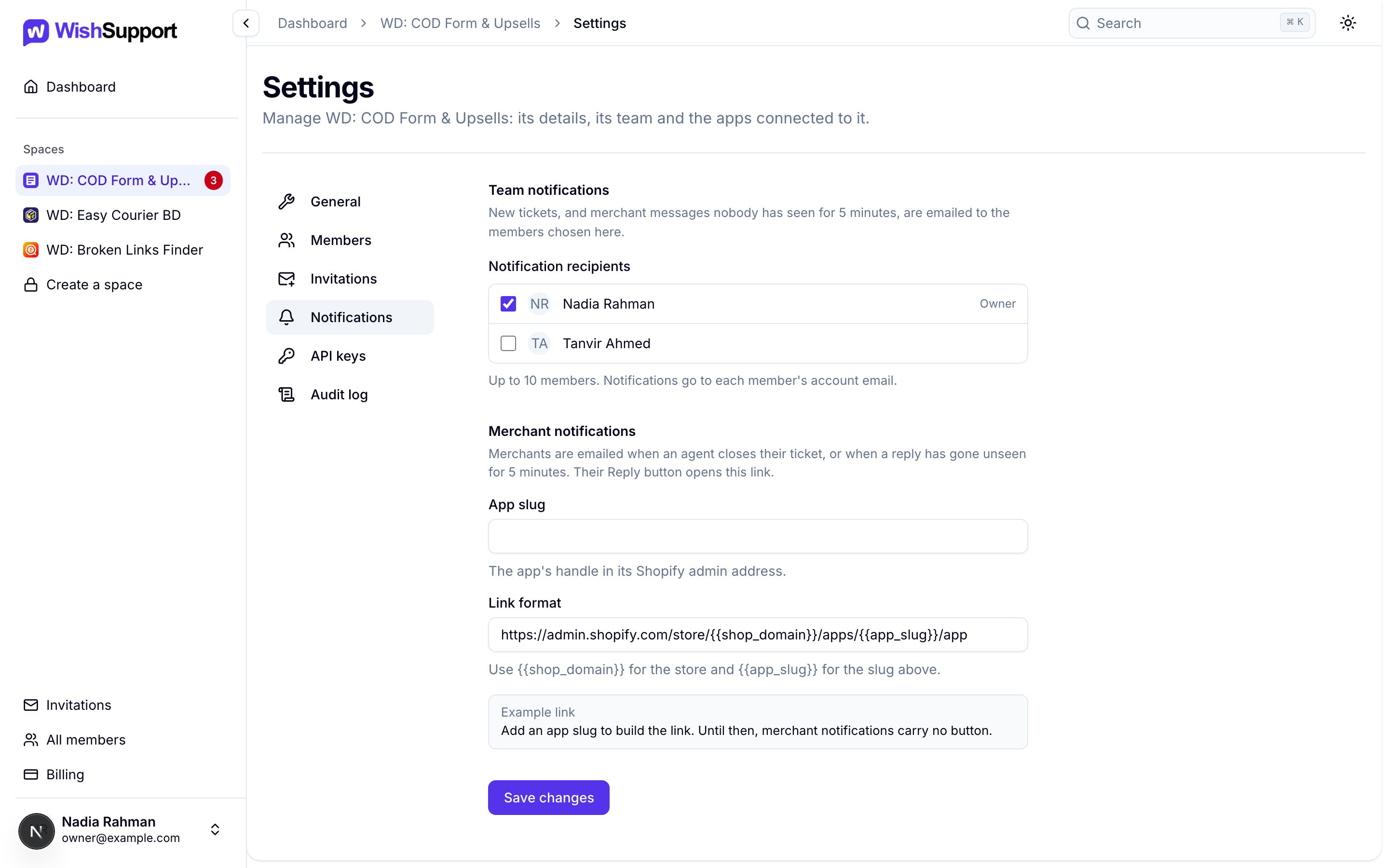
Team notifications: new tickets, and merchant messages nobody has seen for 5 minutes, are emailed to the members you tick here, up to 10. They go to each member’s account email. Until you choose, the owner receives them.
Merchant notifications: merchants are emailed when your team closes their ticket, or when a reply has gone unseen for 5 minutes. Set your app’s App slug so those emails carry a Reply button that opens your app in the merchant’s Shopify admin. Link format decides where the button goes; it uses {{shop_domain}} for the store and {{app_slug}} for the slug. Without an app slug the emails have no button.
API keys
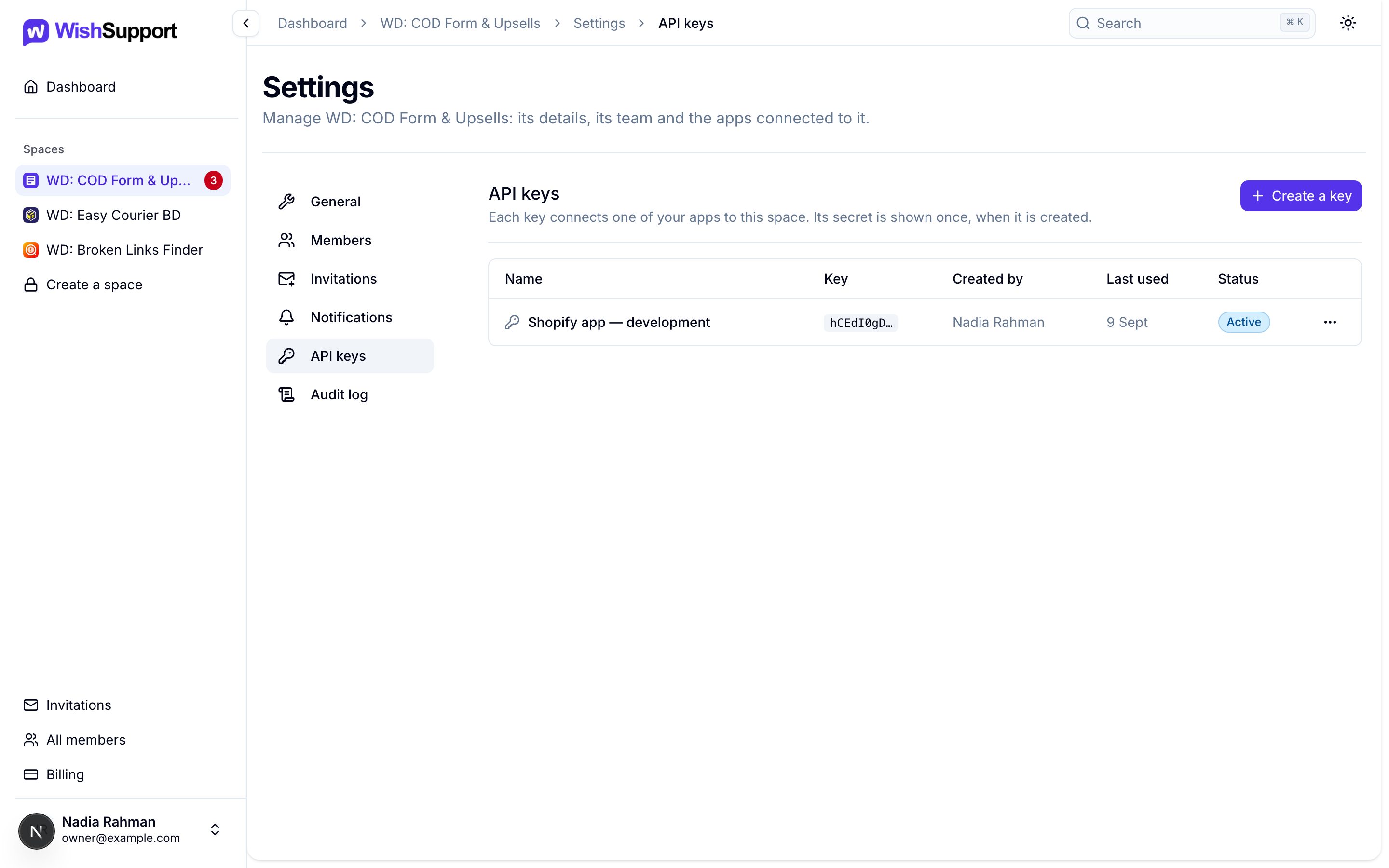
A key connects one of your apps to this space. Choose Create a key, name it after the app that will use it, then copy the key: it is shown only this once. The list then shows each key’s first characters, who created it, when it was last used and its status.
Treat a key like a password:
- Keep it on your server. Never put it in a browser bundle, storefront theme, mobile app or public repository.
- Keep it out of logs, screenshots and support messages.
- If it may have leaked, revoke it from its ⋯ menu and create a new one. Any app using a revoked key stops working immediately.
Each request your app sends also names the merchant’s shop. Follow the Client API quickstart to connect your app.
Audit log
The audit log shows who changed what in the space, newest first: edits to the space and its logo, freezing, removed and frozen members, invitations sent, revoked, accepted or declined, API keys created or revoked, and deleted conversations. Filter it by Person or by Date range. It records administration; the conversation itself keeps its own history in the Activity tab.
Your team across spaces
All members, at the bottom of the sidebar, lists everyone in the spaces you own and shows how many seats are in use. From there you can freeze a person: they lose access to every space you own and their seat is freed, but their memberships are kept, so unfreezing restores them exactly as they were. Unfreezing needs a free seat. Pending invitations are listed too, and you can revoke them there.